Selling on Boulderix
1. Open your store
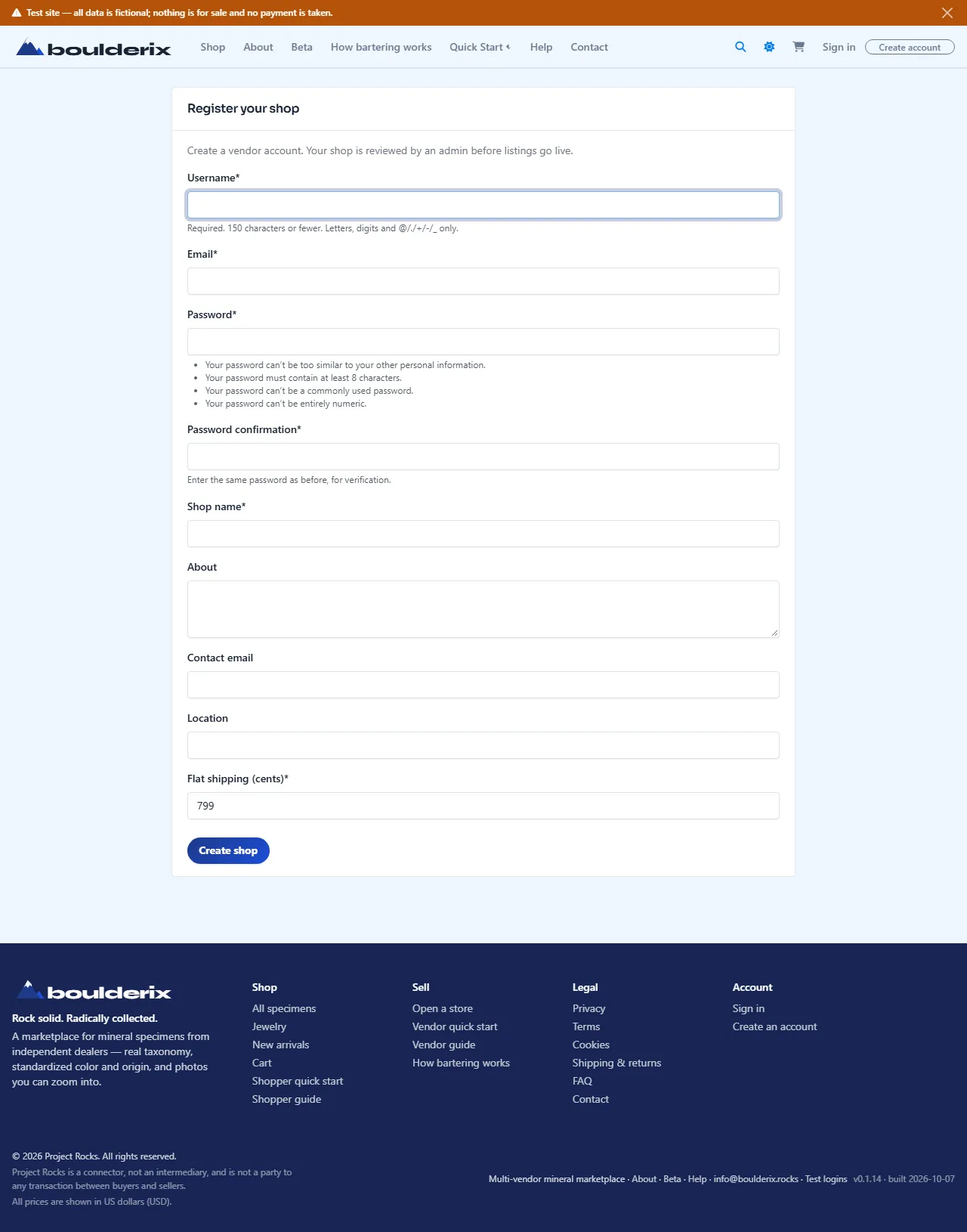
One account covers collecting, selling, and exchanging. Start with Create an account and verify your email. An active, verified member can use Capture without a separate seller signup.
- Create your account and enter the six-digit email code.
- Open Your profile to set your public name, business name, pictures, contact email, and links.
- Open Capture to add a Showcase, Sale, or Exchange specimen.
The separate Open a store form remains available for creating a new account with shop details; existing members do not need to register again. Merchant status is distinct from email verification and does not make your member page private. Disabled accounts cannot sign in and their public pages are hidden.
2. Your dashboard
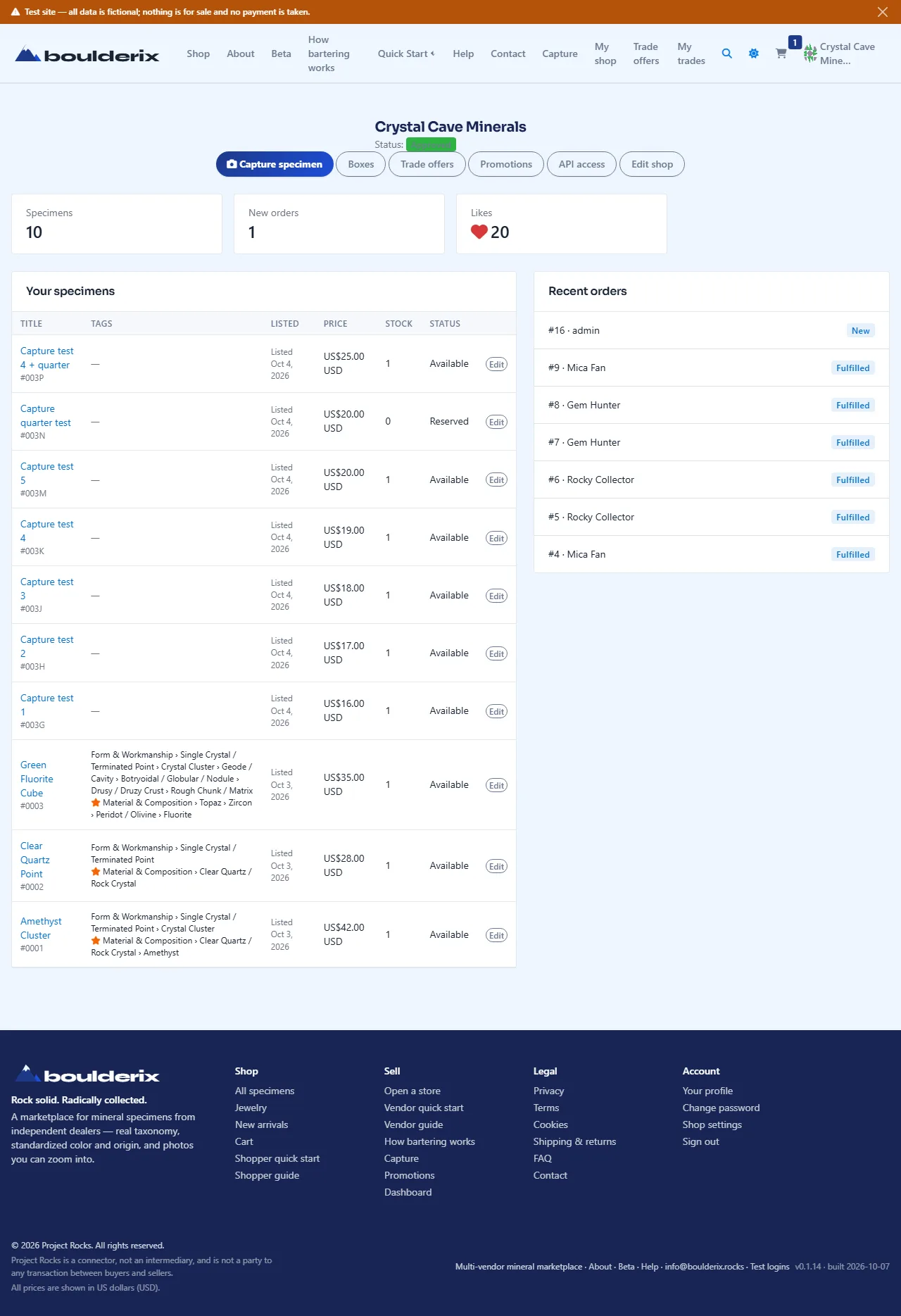
Your dashboard (accessible under your avatar menu in the top-right navigation) is your home base. It features a full-width specimens management view, KPI counters for new orders, total specimens, and likes, and a View All Orders button to access every shop order, tracking number, and customer message thread. Capture is also directly available in the header for verified members.
3. Capture & adjust a specimen
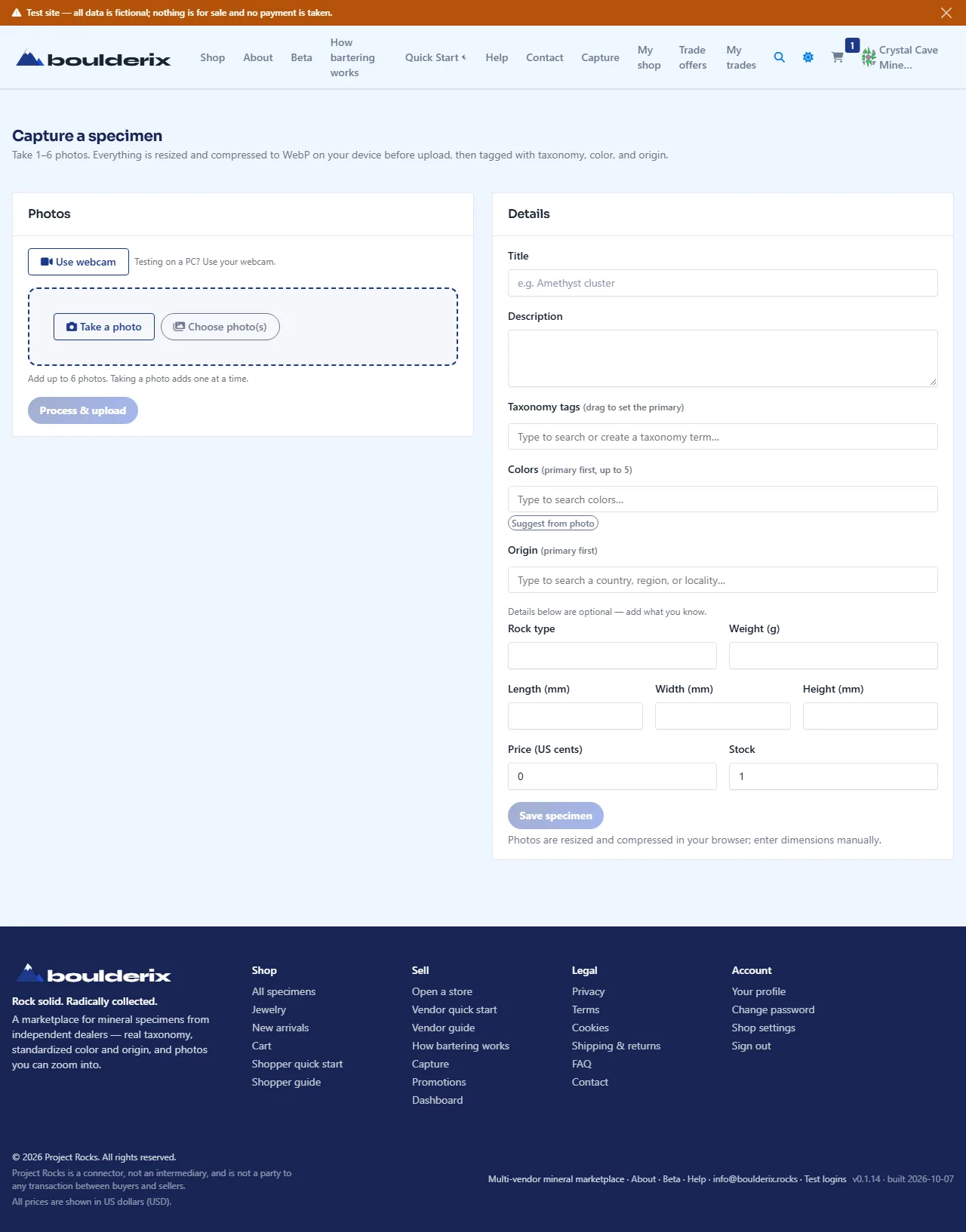
The capture wizard at /capture/ runs on your phone. Image resizing and compression happen on the device before upload, so photos are small and fast to send. There is no automatic scale detection — you enter dimensions yourself.
- Open Capture and use Take a photo,
Choose photo(s), or Use webcam for 1–6 photos.
Top,Side,Macro, orOtherlabels are optional. - Use the Adjust tool to fine-tune brightness, contrast, saturation, rotate, or flip photos, with a Download JPEG button available to save your processed images.
- Use Process & upload. Photos are resized and encoded to WebP in the browser, then uploaded.
- Enter a title, description, weight (grams), dimensions (millimetres), price, and stock.
- Tag the specimen using the instant Classify picker (with 1-click addition to your personal classification tree), pick up to five ordered colours, and select origin from the verified place hierarchy.
- Choose Showcase, Sale, or Exchange, check the details, and save.
The form starts blank. After processing photos it can reuse your most recently created specimen's details from the database; Load last capture loads them on demand. Reset clears details and selected tags back to defaults while keeping your current photos.
4. Edit, tag, and price a listing
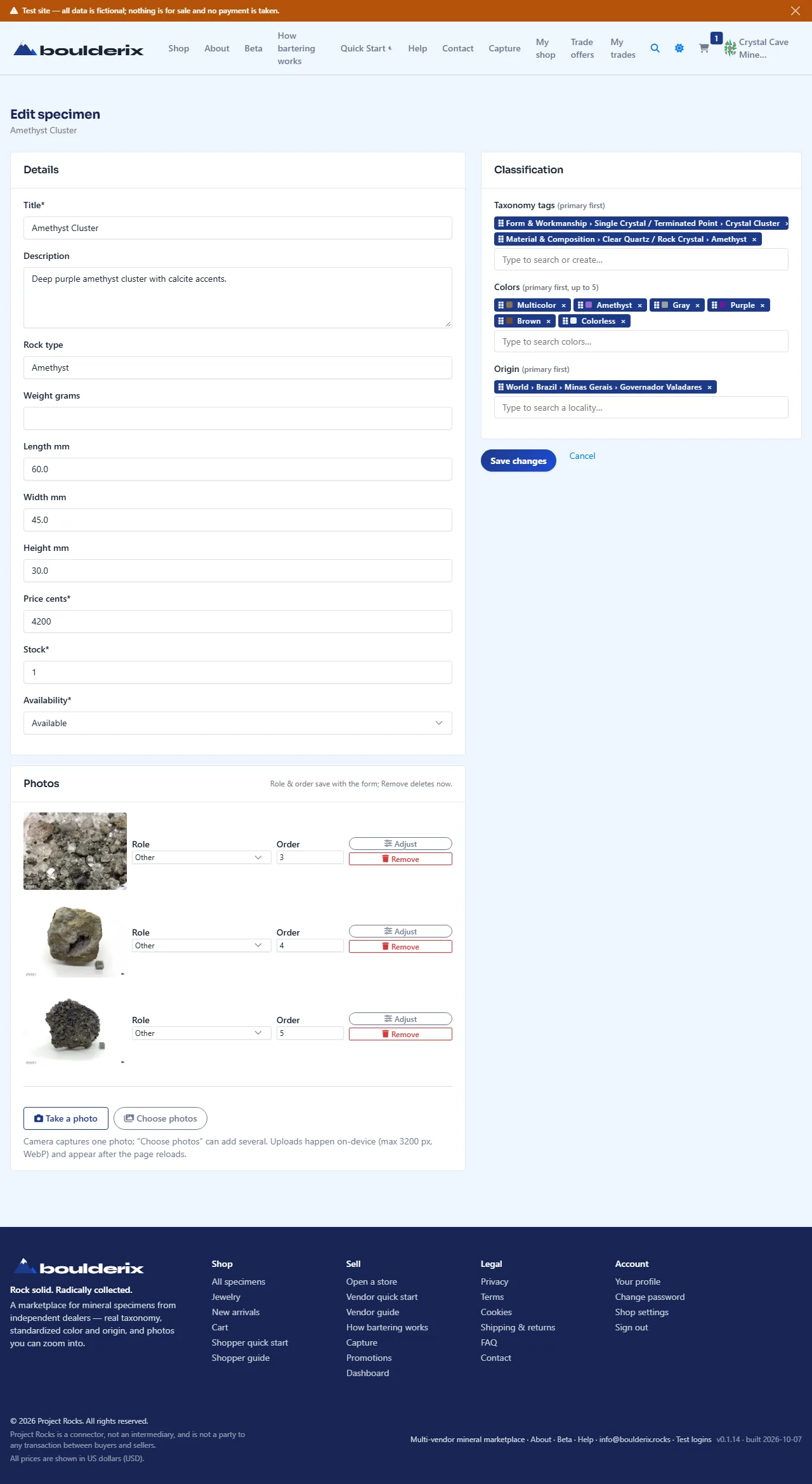
Open any specimen from your dashboard and choose Edit. You can change every field, rework the taxonomy tags, colours, and origin, and manage each photo's role and order — including deleting a photo.
- Showcase: display a specimen without offering it for purchase or trade.
- Sale: offer it for purchase. The capture form starts a blank sale price at $1.00; check it before saving.
- Exchange: offer it for barter with an optional guideline value. A missing value can appear as negotiable.
- Unlisted: omit it from public listings while allowing people with its direct link to view it. This is separate from its listing mode.
- Taxonomy is polyhierarchical: a term can live under more than one parent, and a specimen can carry several tags.
- Colours are ordered; the first is the primary colour and powers the colour filter.
- Origin uses a place hierarchy (country → region → locality).
- Availability is
Available,Reserved,Sold, orHidden, separate from stock count. Set a specimen toHiddento withdraw it from the marketplace without deleting it — it disappears from search, your storefront, and the home page and cannot be bought, but its page stays online with a "not for sale" notice so shared links keep working.
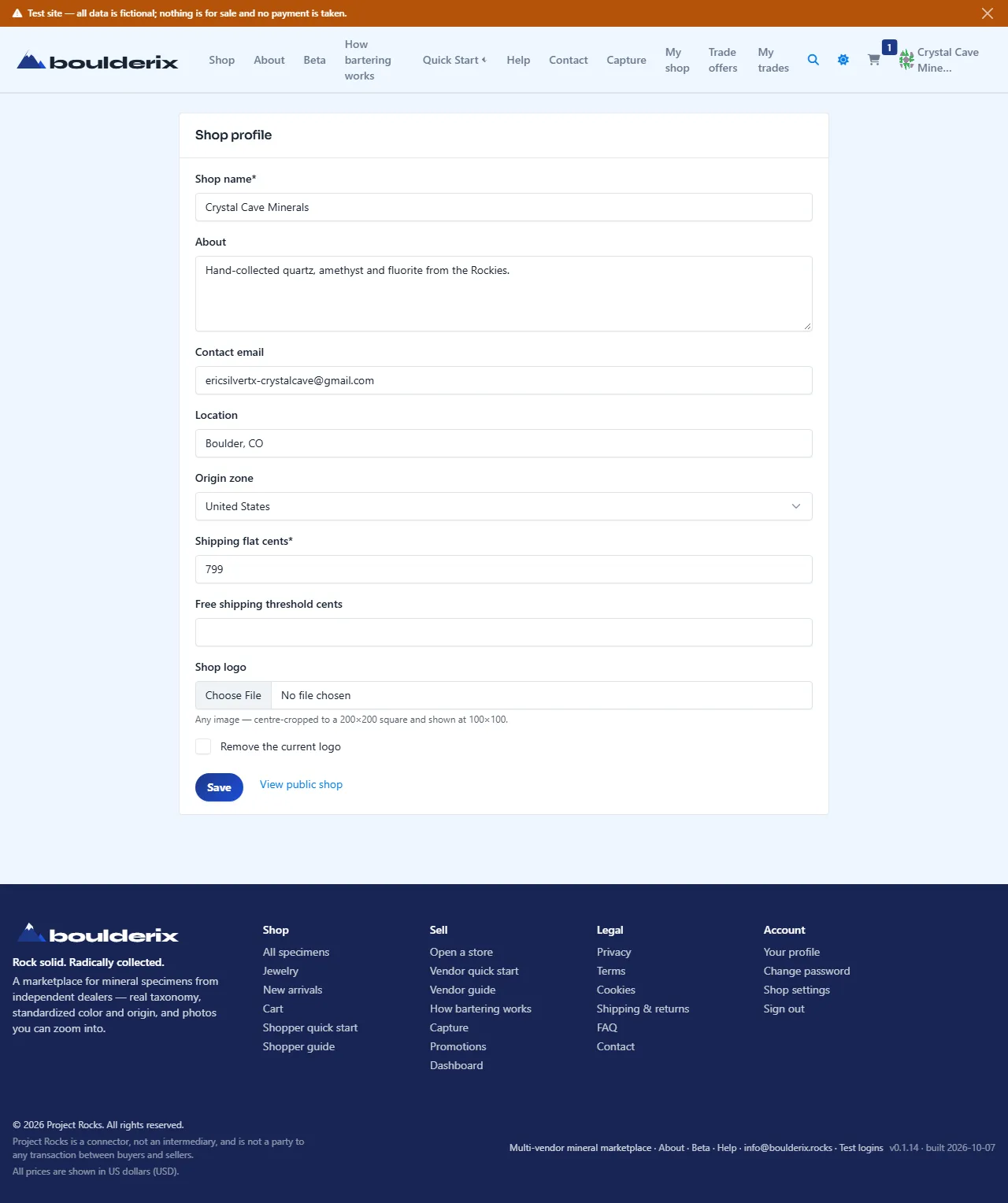
5. Shop profile & shipping
Your profile controls your public member page. Selling & shipping manages shipping settings separately.
- Identity: shop name, "about" copy, public contact email, and location selected from the verified place hierarchy.
- Cover banner & logos: upload a high-definition Facebook Page standard cover banner (820×312 aspect ratio, normalized to 1640×624 px WebP) and business logo.
- External links: add social accounts, websites, and store links; only entries with a URL are shown publicly.
- Advisory shipping estimates: shipping costs are agreed offline directly with buyers. The Shipping calculator provides advisory reference estimates for domestic and international postal lanes.
6. Sales & coupons
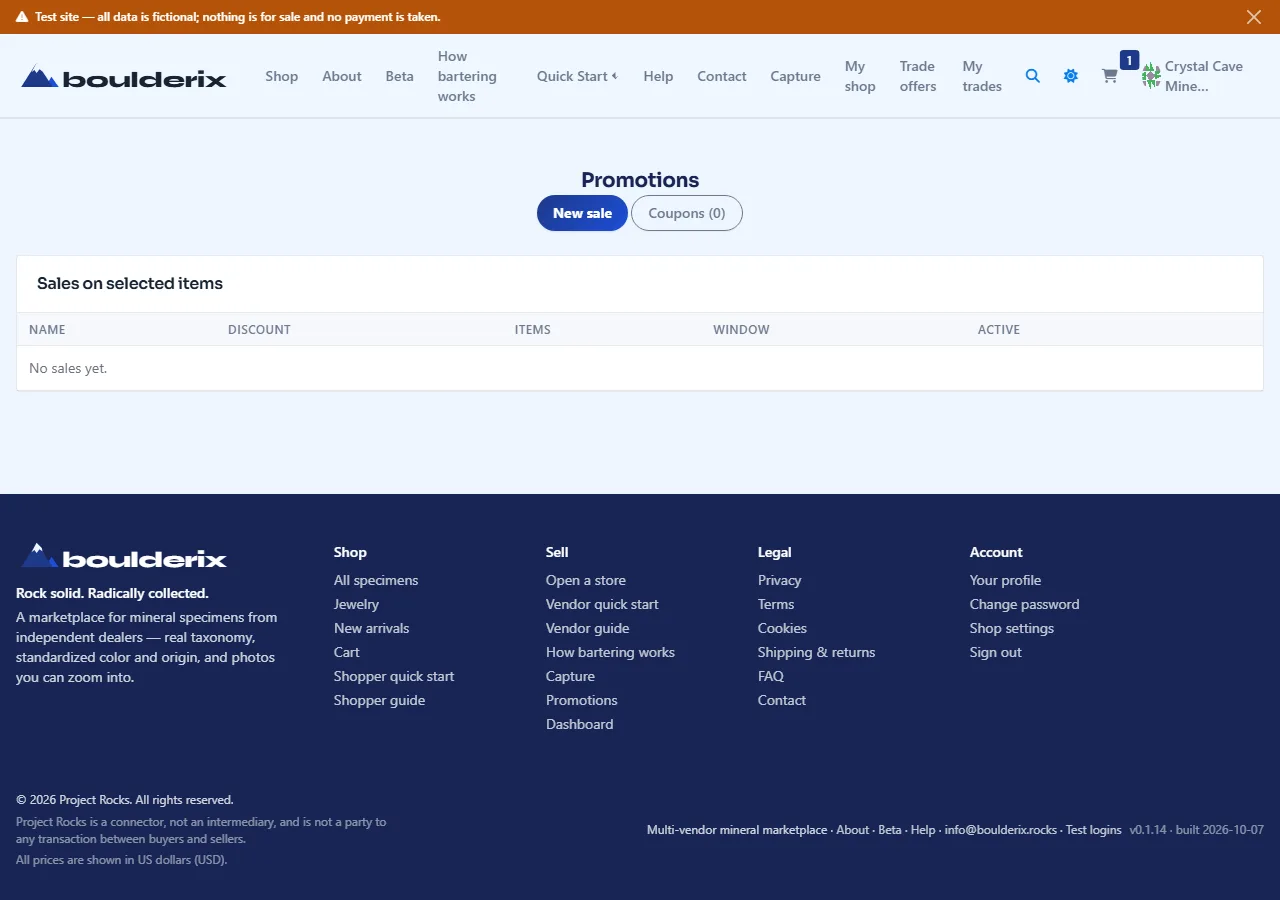
Two discount tools, reachable from the dashboard. A sale and a coupon do not stack — the larger discount applies.
Item sales
A sale automatically discounts a set of your specimens by a percent or fixed amount, optionally within a date window. Discounted items show a sale flag on cards and the product page.
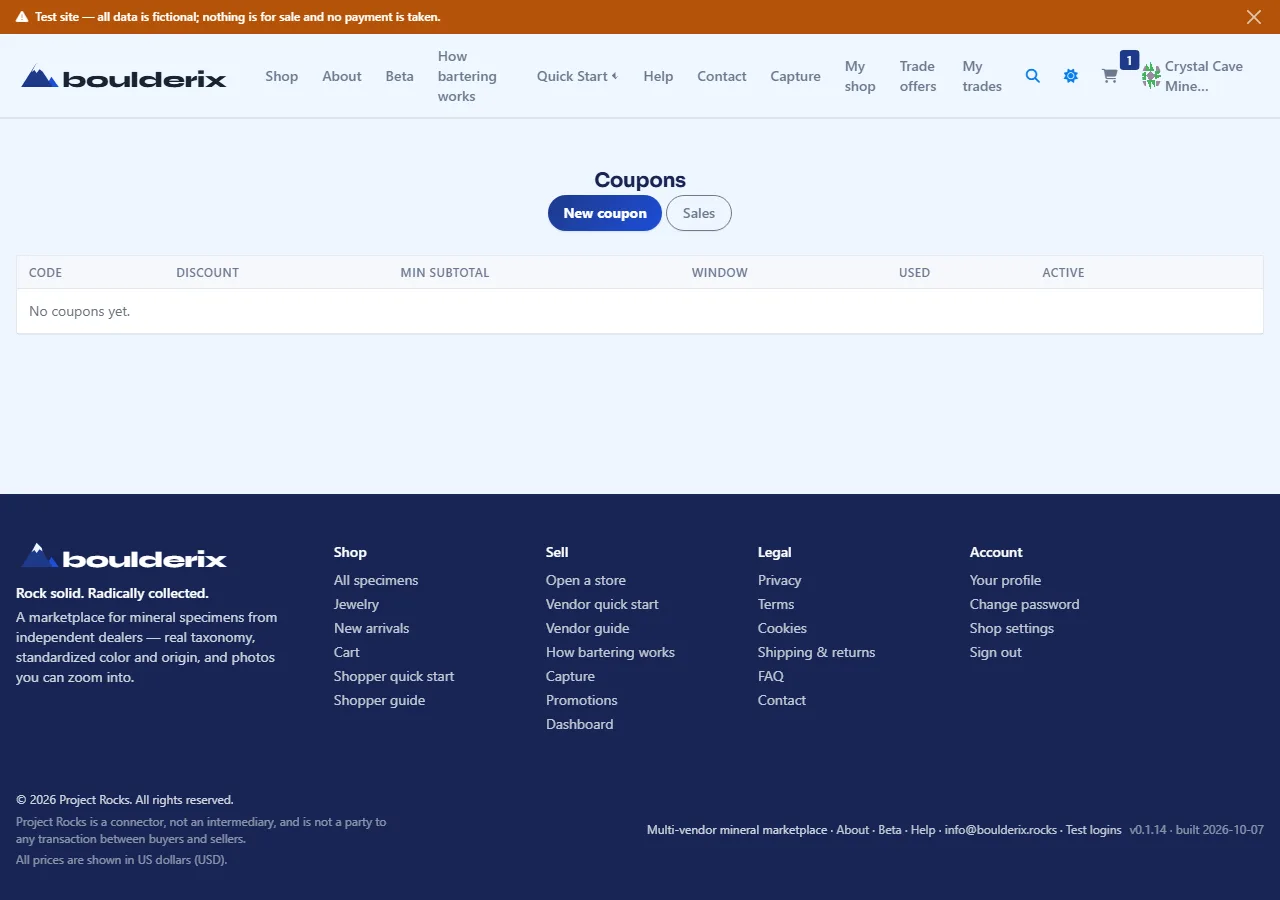
Coupon codes
A coupon is a code the shopper types at checkout: percent or fixed, with a minimum subtotal, an optional date window, and a redemption limit.
7. Orders, fulfilment & audited messaging
There is no online payment. When a shopper checks out, an order record is created, the items' stock is reserved, and notification emails with clickable specimen links are sent to you and the buyer. You arrange payment and delivery directly with the customer.
- View all orders: Access your full sales history anytime via the View All Orders button on your dashboard or under Shop sales.
- Two-way quick messaging: Use the Quick Email to Buyer button on any order to message the customer directly; the system logs every communication in the chronological audit trail and automatically updates new orders to
Contacted. - Fulfilment & tracking: When dispatched, choose Fulfill Order to record the shipping carrier, tracking number, and optional note to the buyer. This marks sold-out specimens as
Soldand emails tracking details to the buyer. - Cancellation: If an order cannot proceed, choose Cancel Order with an explanation. Cancelling automatically restores specimen stock and releases reservations.
- Complete audit trail: Every status update, tracking record, and buyer/vendor message is logged in an immutable chronological timeline on the order detail page.
8. Reviews & replies
Only verified buyers can review a specimen — a signed-in user with an order containing it. Reviews publish automatically and you can post a single reply under each one from the product page. Your shop's rating is the average across its reviews. A platform admin can remove a review.
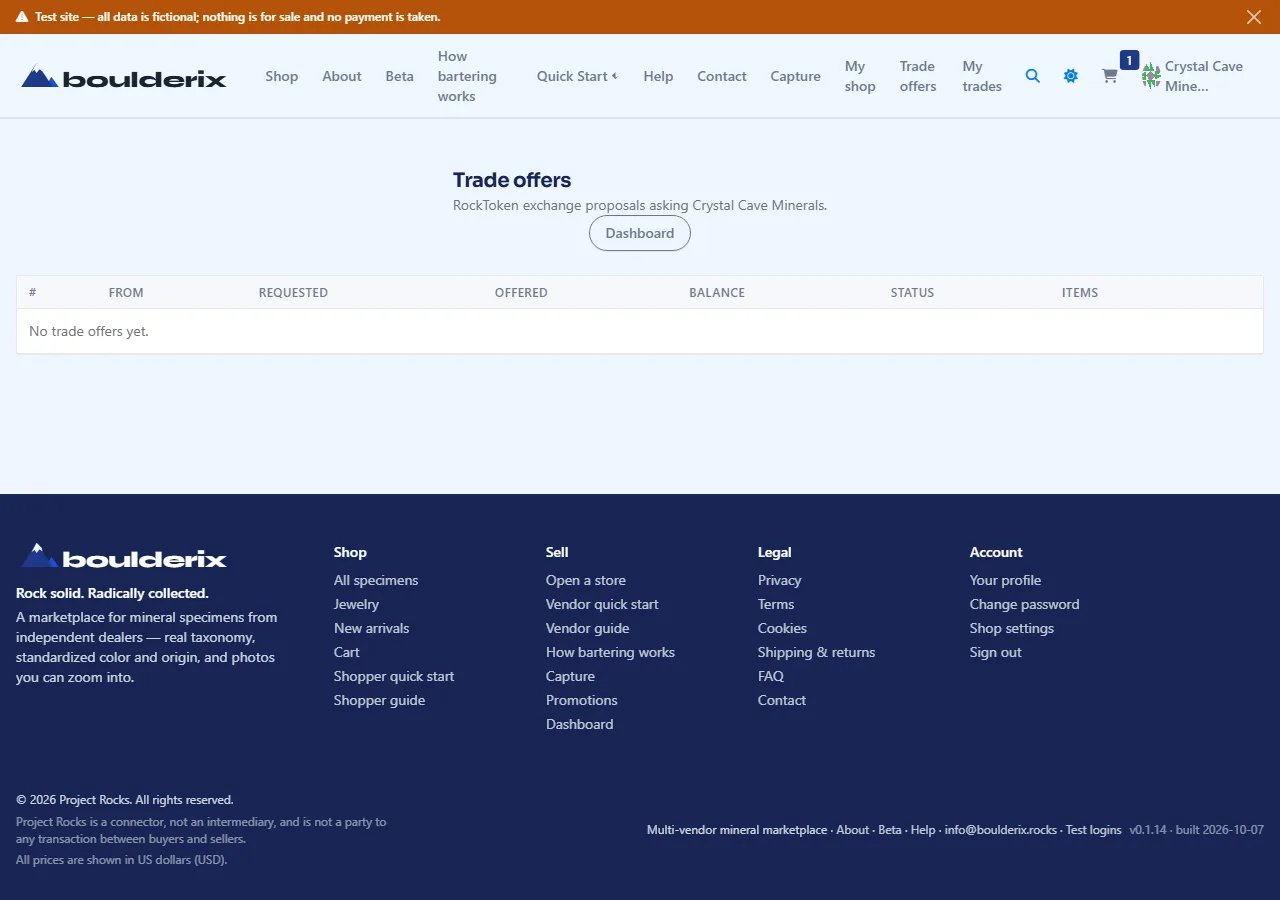
9. Trade offers
Shoppers can propose a trade instead of a purchase. A proposal wants goods from your catalog and offers goods from the requester's own profile, valued in US dollars. Read the full model on How bartering works.
- Review incoming proposals under Trade offers.
- You can accept, decline, or counter with new values.
- A negative balance requires both parties' approval; an offer
is only
Acceptedwith mutual consent. - After acceptance, each party marks the trade complete. When both confirm, ownership transfers in the app and transferred specimens leave their old Swap Boxes. Arrange physical delivery directly; no payment is collected by the platform.
10. API access for apps
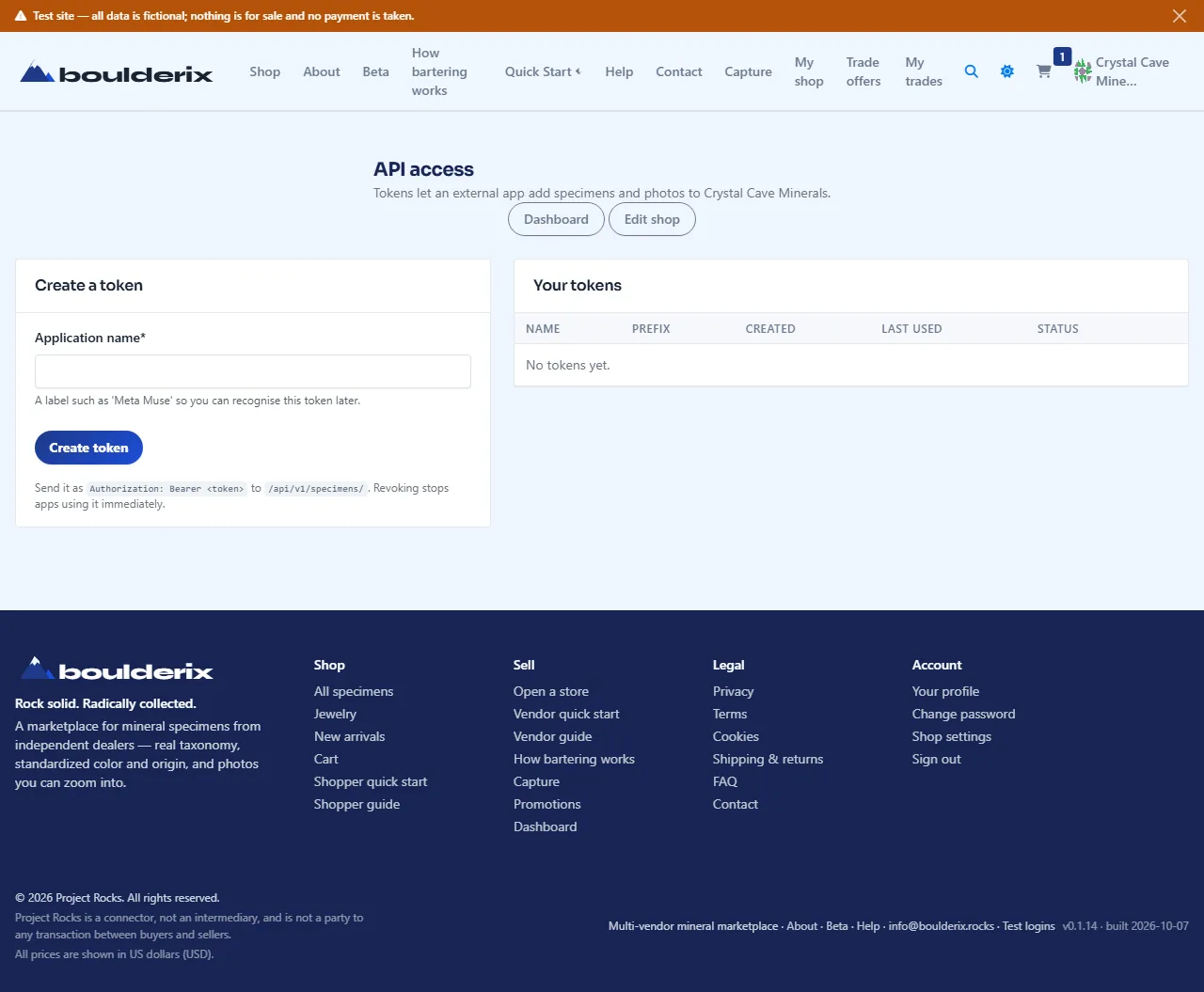
If you manage inventory in another tool, you can let it upload specimens with a photo directly, without coming back to the website.
- Open API access from the dashboard.
- Give the token an application name (for example the app's name) and create it.
- Copy the token immediately — it is shown only once and stored only as a hash.
- Send it to the app as
Authorization: Bearer <token>. The app understands the endpoint and shows what it can do. - Revoke any token at any time; revoking stops that app immediately.
A token acts as your shop and only your shop, and only an approved shop can
upload. The full contract is documented in the repository's
docs/EXTERNAL_API.md.
11. Your public storefront
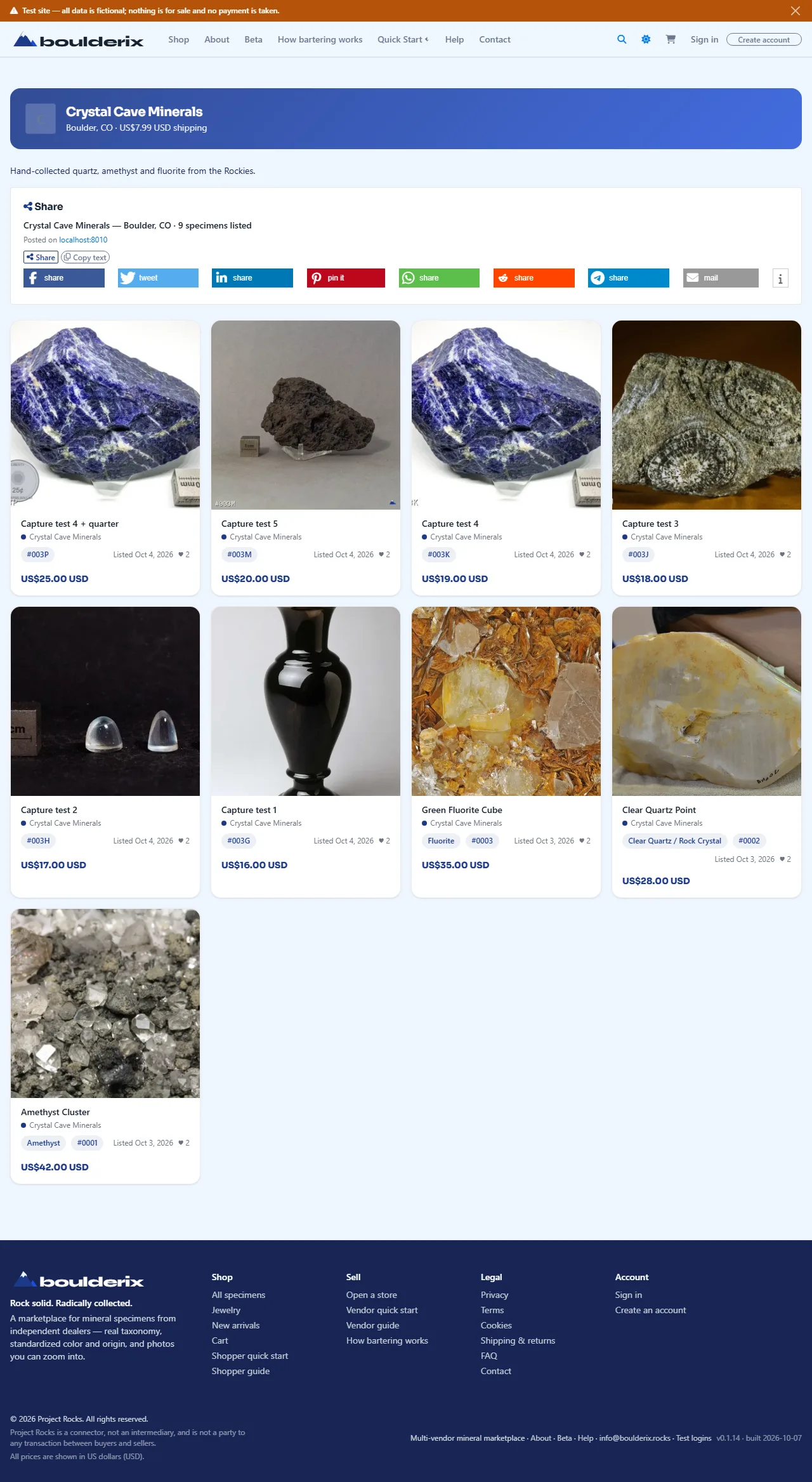
Collectors and stores share one public member page at
/members/<username>/. Guests can browse it without signing in.
Old store and collector links redirect there. Use My public page
in your account menu to open and share it; each specimen also has a shareable URL.
Verify your email
After creating an account, enter the six-digit code sent to your email. Until verification, you can browse as a guest; checkout, capture, and profile editing require verification.
Codes expire after 10 minutes. If a code does not arrive, check spam, confirm the email address, and use Resend code after the 60-second cooldown. Only the newest code works. Five incorrect attempts invalidate it; request a new code.
Changing your private login email in Your profile also requires a code. The old login email stays active until the new address is verified. Existing verified accounts do not need to verify again.
One public page for your collection and store
Your member page at /members/<username>/ is public to guests. Open My public page in your account menu. Your username is fixed in the profile editor; you can change your display name and business name.
- Header & cover banner: customise your profile with a high-definition Facebook Page standard cover banner (820×312 aspect ratio, processed to 1640×624 px WebP) and a square avatar/logo.
- Location hierarchy: select your location from the verified geographic place tree (Continent › Country › State/Region › Locality) to display accurate origin distance.
- Direct email invitations: invite up to 20 friends at a time by email with an optional personal message and track their visit status (Invited → Visited Site → Registered → Verified) while earning +10 Collector XP per verified signup.
- Overview: up to three recent specimens, public open Swap Boxes, and active auctions.
- Specimens, Swap boxes, Auctions: full paginated lists. Tabs remain visible when empty and show “No entries right now.” Swipe the tab row on a phone; shared tab links open that section.
- About & links: about text, the optional public contact email, and your external links. Guests can view all tabs; Follow and Message prompt sign-in.
In Your profile, save public details separately from account details and your private postal address. Your logo, cover banner, and profile picture can all appear. Add as many social, website, or store link rows as you need, including multiple accounts on the same network. Only rows with a URL appear; clear a URL or remove a row and save to remove it.
The optional public email is separate from your login email. Leaving it blank does not expose your login address. External links open in a new tab. The featured-listing option controls featured listings; it does not make your member page private. Disabled accounts are hidden from public pages.
Choose classifications with the picker
Read the public Taxonomy & Classification Guide to browse the hierarchy and try the picker without changing a specimen. Current system dimensions are Material, Form, Optical Phenomena, Treatments, and Jewelry.
The classification picker opens instantly and loads categories progressively level-by-level on demand, supporting deep 5+ level mineral classifications. Expand branches or search across all dimensions with debounced lookup, checking full breadcrumb paths to distinguish similar mineral varieties.
- 1-Click Personal Classification Tree: When typing a custom or regional variety not found in system dimensions, you can add it directly to your personal classification tree under your display name with 1 click.
- Collector XP: Classifying a specimen awards +1 Collector XP (up to 10 XP per day), both on your own specimens and when contributing community tags on fellow collectors' pieces.
Verified members can add terms under any existing dimension and parent; new terms are immediately available and show their creator for admin review. Your personal tree stays visible and organized even if your account status changes.
Shipping estimates and offline settlement
Open Shipping calculator from the header or directly from any Cart, Checkout, or Order Detail page. The calculator pre-fills origin and destination countries and packed parcel weights to show estimated reference rates.
- Direct route pre-fill: Cart, Checkout, and Order Detail show the seller → buyer shipping route and link directly to the calculator with pre-populated weights.
- Hold in a box: Orders from the same seller gather with shipping deferred. Request shipping from Your boxes when ready, and the seller confirms the combined box size and delivery details offline.
The calculator creates no shipment and saves no address to your account. No payment is collected by the platform. See Shipping & Returns for delivery and return arrangements.
Find and contact other collectors
Use the Community menu for the Community Hub, Discussion forums, the Wanted board, Collectors, and the Collector map.
Browse publicly, then sign in to participate or use Follow and Message on another member's page. Public profile links show where else that member can be found. Use Contact for platform help.
This is a fictional demonstration site — every store, specimen, price, order, and review is synthetic and nothing is for sale.
12. Post a specimen to social
Beyond sharing a link, you can publish a specimen straight to a social account the platform has connected. In this build the only network is a Facebook Page, reached through the platform's social connection — you never sign in to Facebook here and no Facebook password or token is stored by Boulderix.